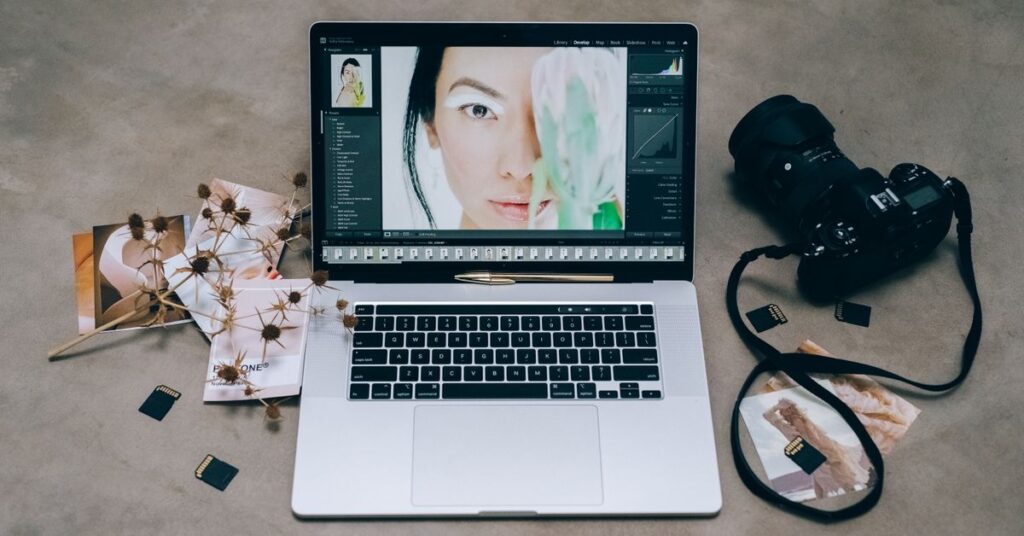
A Nano Banana prompt guide only needs to teach one habit: describe the picture the way a photographer or art director would brief a colleague. Nano Banana is Google’s image model inside the Gemini app. It reads full sentences well and punishes vague, keyword-style prompts. This guide gives you a repeatable formula, ready-to-edit examples and the mistakes that waste most generations.
Quick answer: how to write a Nano Banana prompt
Name the subject, say what it is doing, place it somewhere, set the camera or composition, then add a style. Write it as one or two natural sentences, state what must stay unchanged when editing, and refine with short follow-up messages instead of rewriting everything.
Key takeaways
- Use sentences, not keyword lists. Google’s own guidance recommends narrative descriptions.
- Follow the order: subject, action, location, composition, style.
- Describe what you want, not what you want to avoid. Say “empty street” instead of “no cars”.
- For edits, say what to change and what to keep.
- Put any on-image text in quotation marks and describe the font style.
- Iterate in the same chat. Small corrections beat a fresh prompt.
What Nano Banana is, and why prompts matter so much
Nano Banana started as the nickname for Google’s Gemini image model. Today the name covers a family of models. Nano Banana 2 is built on Gemini 3.1 Flash Image and is the fast default in the Gemini app. Nano Banana Pro is built on Gemini 3 Pro Image and suits heavier, more complex requests. You can read the differences in our Google Nano Banana Pro explainer.
All of them share one trait. They follow instructions closely. A precise prompt gets a precise result, and a lazy prompt gets a generic one. That is why a good Nano Banana prompt guide focuses on structure rather than magic words.
The five-part Nano Banana prompt formula
Google’s developer guidance for image generation without reference photos boils down to five ingredients. Think of them as slots you fill in.
| Slot | What to include | Example |
|---|---|---|
| Subject | Who or what is in the frame | A ceramic coffee mug with a chipped rim |
| Action | What the subject is doing | steaming on a windowsill |
| Location | Where the scene happens | in a small Lisbon apartment |
| Composition | Angle, framing, lens | close-up, shallow depth of field, 85mm lens |
| Style | Mood, light, medium | soft morning light, muted film look |
Put it together and you get: A ceramic coffee mug with a chipped rim, steaming on a windowsill in a small Lisbon apartment. Close-up, shallow depth of field, 85mm lens. Soft morning light, muted film look.
Notice that nothing here is a keyword dump. It reads like a shot description, and that is exactly what the model handles best.
Why order helps
Models give more weight to what they read first. Lead with the subject so the model locks onto the right thing before it processes the style. Therefore, “a red vintage bicycle” belongs at the start, not buried after five adjectives about lighting.
Photo-style prompts that work
Photography terms are the fastest way to steer realism. Name the lighting, the lens and the film look. The model recognises them because it has seen millions of captioned photographs.
- Lighting: golden hour backlight, soft window light, three-point softbox, overcast diffused light.
- Camera and lens: low-angle shot, aerial view, 35mm, 85mm portrait lens, macro, f/1.8 shallow depth of field.
- Film and colour: 1980s colour film with slight grain, muted teal grade, high-contrast black and white.
- Materials: navy tweed, brushed aluminium, matte ceramic, weathered oak.
Ready prompt: “Portrait of a bakery owner dusting flour from her hands, standing behind a wooden counter at dawn. Waist-up, 85mm lens, shallow depth of field. Warm window light from the left, natural skin texture.”
Nano Banana prompt guide for editing your own photos
Editing is where Nano Banana shines. Upload a photo and talk to it. The rule that matters most is simple: say what to change, then say what to keep.
| Goal | Prompt pattern |
|---|---|
| Remove an object | Remove the parked car on the left. Keep the street, lighting and everything else exactly the same. |
| Change the background | Replace the background with a plain light grey studio backdrop. Keep the person, pose and clothing unchanged. |
| Fix lighting | Brighten the face slightly and soften the harsh shadow under the chin. Do not change the expression or background. |
| Restyle | Turn this photo into a watercolour illustration. Keep the same composition and the same people. |
| Combine images | Place the lamp from the second image on the desk in the first image. Match the lighting and shadows. |
| Colour a sketch | Turn this pencil sketch into a finished product render in matte white plastic, on a plain studio background. |
If a person appears in the photo, say the face and identity must stay the same. Otherwise a stylistic change can drift the likeness.
How to add text to an image
Text inside images used to be a weak spot for AI models. It is much better now, though it still needs care. Use these rules.
- Put the exact words in quotation marks.
- Describe the typography: “bold white sans-serif” or “hand-lettered script”.
- Say where the text sits: “centred at the top” or “on the front of the box”.
- Keep it short. Five words are safer than fifteen.
- For long or important copy, finalise the wording in chat first, then ask for the image.
Example: “A minimalist poster for a jazz night. Large cream headline reading ‘Blue Hour Sessions’ in a bold serif font, centred at the top, on a deep navy background with a small saxophone silhouette.”
We cover this use case in more depth in a separate post about logo prompts, so start with short text before you attempt a full design.
Using reference images
You can attach several reference images in one prompt. Google’s guidance for this mode is to list the references, explain how they relate and describe the new scene. For example: “Use the character from image one and the jacket from image two. Show her walking through a rainy night market.” Check each result for drifting details, because longer reference lists increase the chance of small mismatches.
Expert insights from real prompt habits
Three habits separate people who get usable images from people who burn through their daily limit.
- They write for one image. A prompt asking for a scene, a logo and an infographic at once rarely satisfies any of them.
- They iterate in small steps. “Make the light warmer” works better than a new 80-word prompt.
- They keep a prompt library. Once a structure works, they copy it and swap the subject.
Our collection of Gemini prompts uses the same habit for text tasks, and it pairs well with this guide.
Common Nano Banana prompt mistakes
| Mistake | Why it fails | Fix |
|---|---|---|
| Keyword lists (“4k, ultra, masterpiece”) | No scene for the model to understand | Write one descriptive sentence |
| Negative instructions (“no cars, no people”) | Mentioning something can still invite it | Describe the empty scene you want |
| Editing without a “keep” clause | Unrequested changes appear | State what must remain the same |
| Too many subjects | The model splits its attention | One hero subject per image |
| Restarting every time | You lose the good parts of the last result | Refine in the same chat |
Limits, plans and safety to keep in mind
Daily image limits depend on your Google AI plan, and Google has stopped publishing fixed numbers. Its usage page now describes a shared compute meter that refreshes every five hours until a weekly cap. Free accounts may be limited first when demand is high. Always check the usage settings in your account rather than trusting an old number.
Images made with Google’s tools carry SynthID watermarking, and Google is adding C2PA content credentials. Do not use these tools to impersonate real people or mislead others. Our disclaimer explains how we treat information on this site.
Frequently asked questions
What is the best Nano Banana prompt formula?
Use subject, action, location, composition and style, written as one or two natural sentences. For example, name the object, say what it is doing, set the scene, add a camera angle and finish with a lighting or film style. This order keeps the model focused on the main subject.
Should I write long or short Nano Banana prompts?
Write as much as the image needs, and no more. A clear sentence or two with a subject, setting and style usually beats a keyword list. Add detail when something goes wrong, such as lighting, lens or materials, rather than padding every prompt from the start.
How do I edit a photo with Nano Banana?
Upload the photo, state the change, then state what must stay the same. For example: replace the background with a plain grey studio backdrop, and keep the person, pose and clothing unchanged. Follow up in the same chat with small corrections instead of starting over.
Why does Nano Banana ignore part of my prompt?
Usually the prompt asks for too many things or buries the key subject. Put the main subject first, reduce competing elements and describe what you want rather than what to avoid. Then refine in the same conversation with one clear correction at a time.
Can Nano Banana put readable text in images?
Yes, and it is much better at it than early image models. Put the exact words in quotation marks, describe the font style and say where the text should sit. Keep it short. For important copy, settle the wording in chat first, then request the image.
Do negative prompts work in Nano Banana?
Not reliably. Google’s guidance recommends positive framing, so describe the scene you want. Say empty street instead of no cars. Mentioning an unwanted item can still draw attention to it, so replace the negative with a clear description of what should be there.
Put this Nano Banana prompt guide to work
Start with the five-slot formula, then add edit rules and one refinement message. Save every prompt that works. Within a week you will have a personal template set that beats any list of tricks. When you are ready to compare models, read about Google Nano Banana Pro next. You can also browse everything in the Gemini photo editing section or return to the Google Edits homepage. To see how we check our guides, read how we test.
Independent publication. Not affiliated with or endorsed by Google. Limits and prices change; verify in your own account.